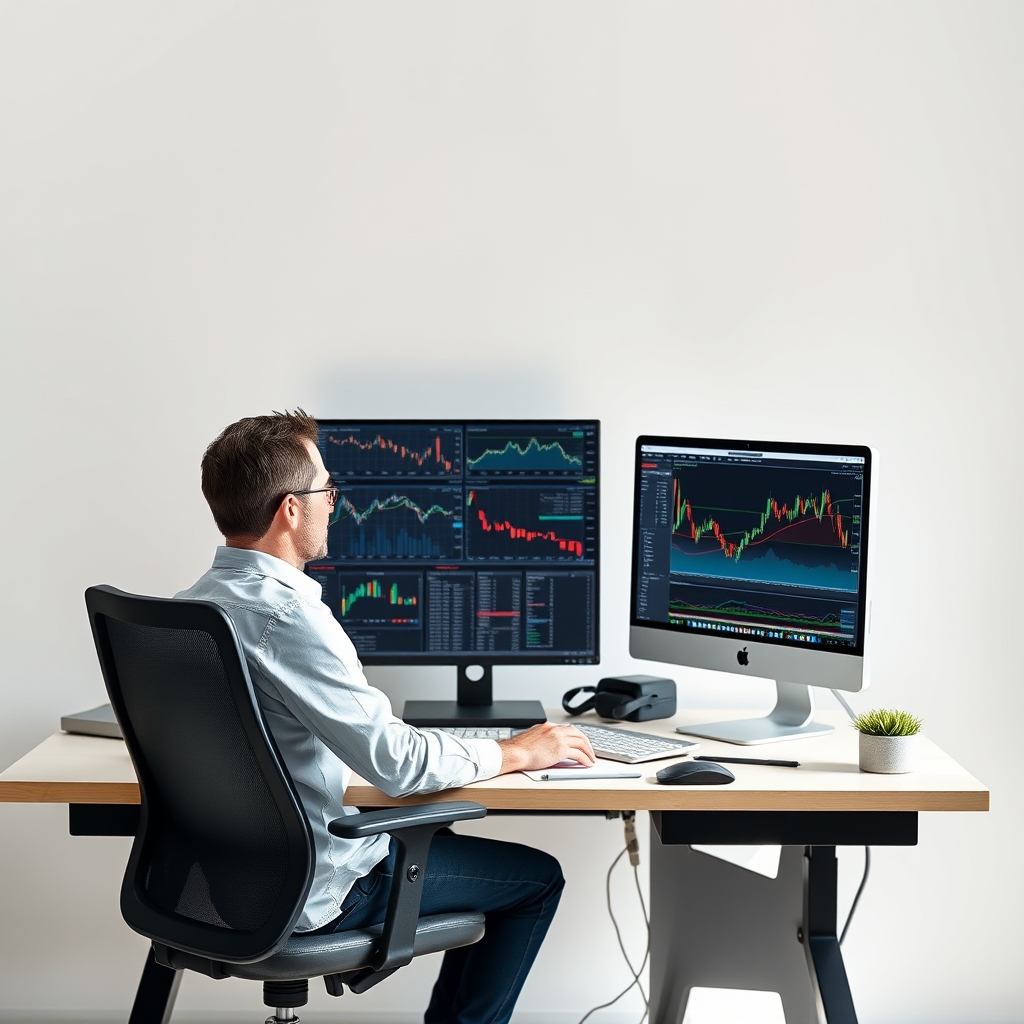
A forex VPS is a remote Windows computer that stays on around the clock, so your MetaTrader platform and any automated strategy keep running when your laptop is off. It doesn't make a strategy profitable. It only removes one source of failure: your own hardware and internet connection. If you're not sure you need one, read Do you need a VPS to run a forex bot? first.
Who Actually Benefits From a VPS
- Expert Advisor (EA) users who need the platform running through every session.
- Traders with unreliable power or internet at home.
- Short-term or scalping traders for whom a few milliseconds of delay can change fills.
If you trade manually a few times a week on higher timeframes, you can probably skip it and save the monthly fee.
VPS Options Compared
Prices change often and depend on specs and billing term, so I haven't listed figures here. Confirm current pricing and terms on each provider's official site before paying.
| Option | Best for | Main advantages | Main tradeoffs |
|---|---|---|---|
| Broker-provided VPS | Beginners, small accounts | Sometimes free or discounted, often placed near the broker's servers | Often tied to balance or trading-volume conditions; may be removed if you stop meeting them |
| MetaTrader's built-in virtual hosting (MQL5) | Simple MT4/MT5 migration | Designed for MetaTrader, quick to set up from the platform | Limited to the MetaTrader environment; no full desktop for other tools |
| Forex-focused VPS companies | Traders wanting low latency and support that understands MT4 | Data-center locations chosen for trading, plus MT4-aware support | Usually cost more than generic hosting; marketing claims about speed vary |
| General cloud/Windows VPS | Technically comfortable users | Flexible specs and locations, easy to scale | You manage security, updates and setup yourself |
How to Choose
- Check your broker first. Read the VPS conditions carefully, including what happens if your balance drops.
- Match the location to your broker's server, not to where you live.
- Size it modestly. One or two MT4 terminals with a few charts don't need a large machine. Check the platform's memory and CPU use before upgrading.
- Look at the refund or trial policy. A short trial lets you test latency with your own broker.
- Read the fine print on uptime. Uptime figures are promises, not guarantees. Look at what compensation, if any, is offered.
Understanding Latency
Latency is the round-trip time between your VPS and your broker's trade server, measured in milliseconds. Lower is generally better, but how much it matters depends on your style.
- Scalping and news-sensitive systems are the most affected, since small delays can mean slippage or requotes. If you're evaluating a fast-trading EA, see our Scorpio Scalper review and alternatives comparison and consider how execution speed fits that approach.
- Swing and position strategies usually care far more about uptime than raw speed.
Latency isn't the only factor. Broker execution quality, spreads and server load also affect fills, so a fast VPS can't fix a slow broker.
How to Measure It Yourself
- Log in to MT4 on the VPS.
- Look at the connection indicator at the bottom right of the platform. It shows connection speed in milliseconds.
- Check it at different times, especially during London and New York sessions and around news.
- Compare it against the same reading from your home connection.
If the VPS isn't clearly better, or your broker has servers in several regions, test another location before committing to a longer plan.
 Recommended for youScorpio Scalper Review: Features, Pricing, Refund Policy and Is It Worth It?
MT4 Setup on a Windows VPS: Step by Step
- Connect by Remote Desktop. Use the IP address, username and password from your provider. On Mac, use Microsoft's Remote Desktop app.
- Secure the machine immediately. Change the default password, keep Windows updates on, and don't browse the web or open email on it.
- Install MT4 from your broker's website, not from a random download link.
- Log in to your account, and consider using a demo account first.
- Enable algorithmic trading. Turn on the "Algo Trading" button and tick the relevant permissions in the EA's properties.
- Copy your EA and templates into the correct data folders (File → Open Data Folder), then restart the platform.
- Attach the EA to the chart and confirm the smiley face or active status appears.
- Adjust power settings so the machine never sleeps or logs you out in a way that stops the platform. Many providers handle this, but check.
- Close the Remote Desktop window by disconnecting rather than logging off, so the session keeps running.
Check Before You Walk Away
- Run the setup on a demo or very small live account for at least a few days.
- Make sure the EA logs show it's reading prices and handling orders correctly.
- Confirm that your EA's license allows use on a VPS, as some tie licenses to account numbers or machines.
- Keep a backup of your EA files and settings off the VPS.
Hidden Costs and Honest Tradeoffs
- It's another monthly fee on top of any EA, indicator or signal subscription. Our pricing guide explains how these costs add up.
- It adds security responsibility. A remote machine holding your trading login deserves strong passwords and two-factor protection where available.
- Running automation continues to carry risk. A VPS keeps a bad strategy running just as reliably as a good one, so use stop-loss rules and position sizing you're comfortable with. Retail forex and leveraged trading can lose money quickly.
- Cheaper isn't always worse, and expensive isn't always better. Test with your own broker.
Where to Go Next
If you're still deciding what to run on your VPS, these pages help:
- Best Forex Trading Bots and Robots Reviewed
- Forex Fury EA Review: Features, Pricing, Results and Refund Policy
- Forex Indicator vs Bot vs Signal Service: Which Should You Choose?
- MQL5 Signals Service Review: Costs, Reliability and Is It Worth It?
- Forex Indicator, Bot and Software Reviews
Whatever you choose, confirm current pricing, specs and refund terms on the provider's official site, start with a small test, and treat the VPS as infrastructure rather than an edge. This is general education, not financial advice. If you're unsure whether leveraged trading suits your situation, consider speaking with a qualified financial professional.
Keep reading
 Scorpio Scalper Alternatives and Competitors ComparedWhat Scorpio Scalper Is, and Why Traders Look for Alternatives Scorpio Scalper is marketed as an au…
 Best Forex Indicators for MT4 and MT5 ReviewedMost traders don't need more indicators. They need two or three they understand, tested on a demo a…
 Best Forex Trading Bots and Robots ReviewedForex bots (also called Expert Advisors or EAs) are programs that place and manage trades by fixed…